
Troubleshooting and fixing Delta airlines in-flight WiFi page can’t be reached issue
The Issue: No Captive Portal on Delta WiFi
Summer 2024. I was on an 8-hour flight from London to the US. I connected to Delta’s in-flight WiFi just fine on my phone. But on my Linux laptop? No captive portal. No redirect. Nothing. I spent the flight troubleshooting it. After a bit of digging, I found the culprit: Docker.
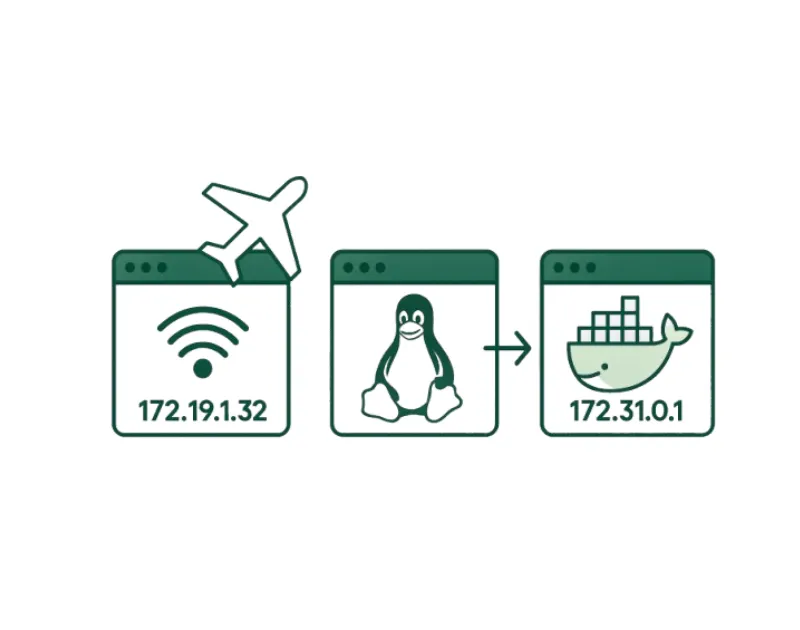
Turns out Delta’s WiFi runs on the 172.19.0.0/23 network which happens to be the same range Docker uses by default.
The Fix (TL;DR)
Fast-forward to Summer 2025 on a flight to Denver, I finally resolved the issue:
- Docker’s default bridge network (172.17.0.0/16 or 172.19.0.0/16) conflicts with Delta’s in-flight WiFi (172.19.0.0/23).
- I changed Docker’s bridge to a safe range: 172.31.0.0/24.
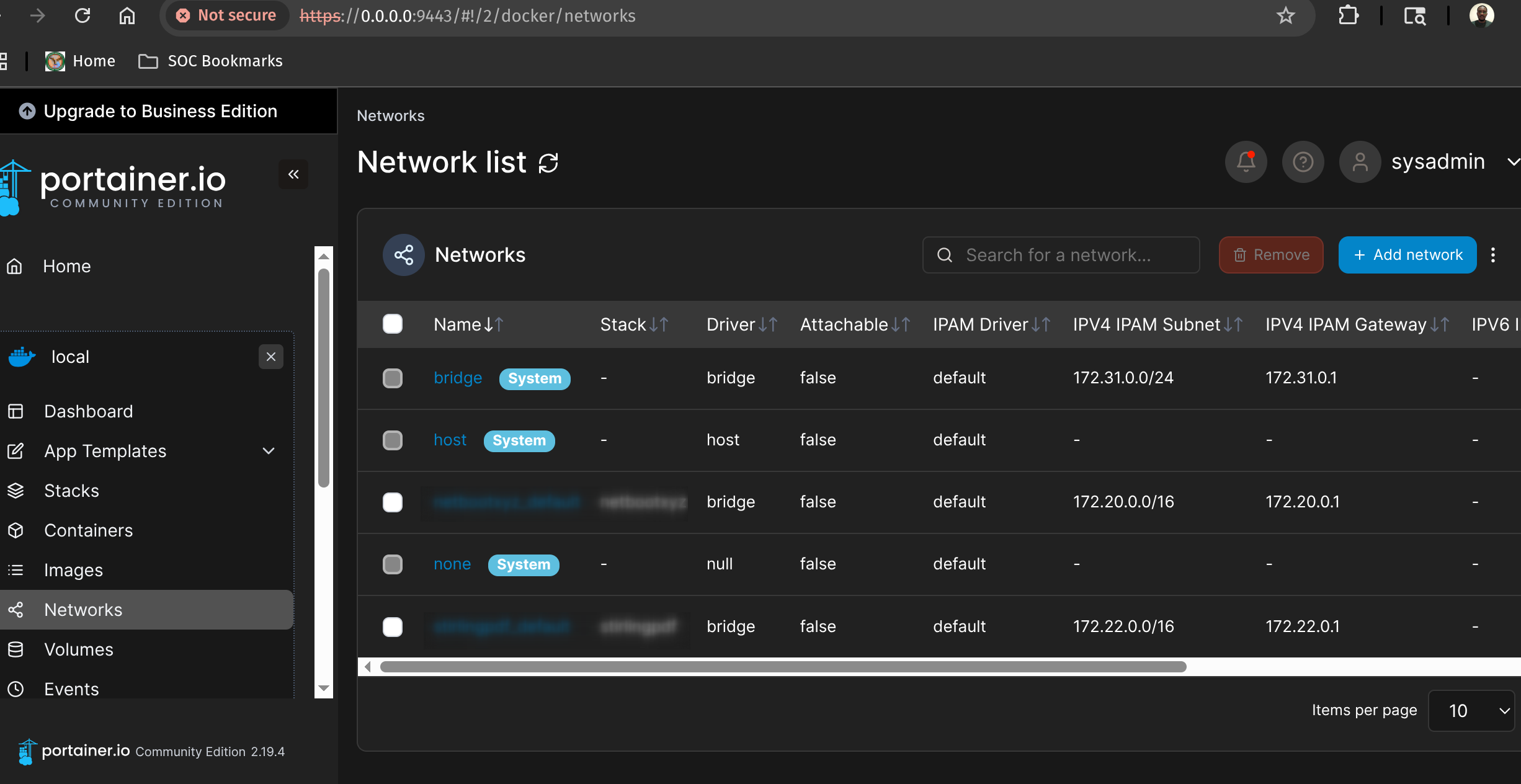
- Then I removed all container networks overlapping with 172.19.x.x using Portainer and
docker network rm.
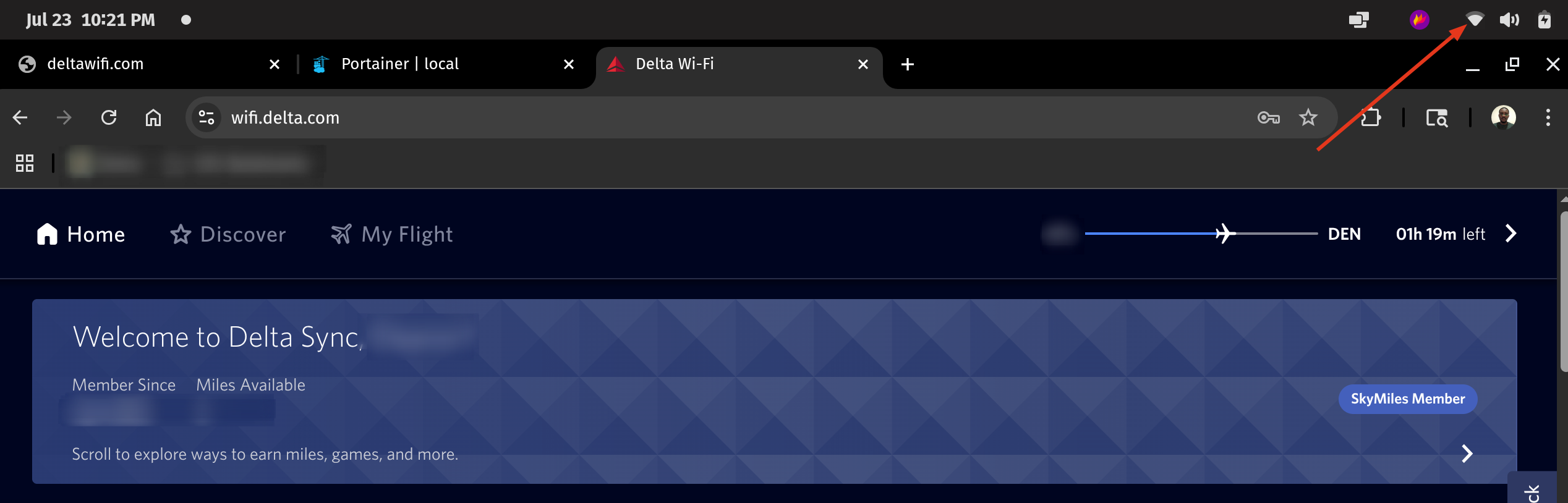
The Delta captive portal appeared immediately after. Problem solved.
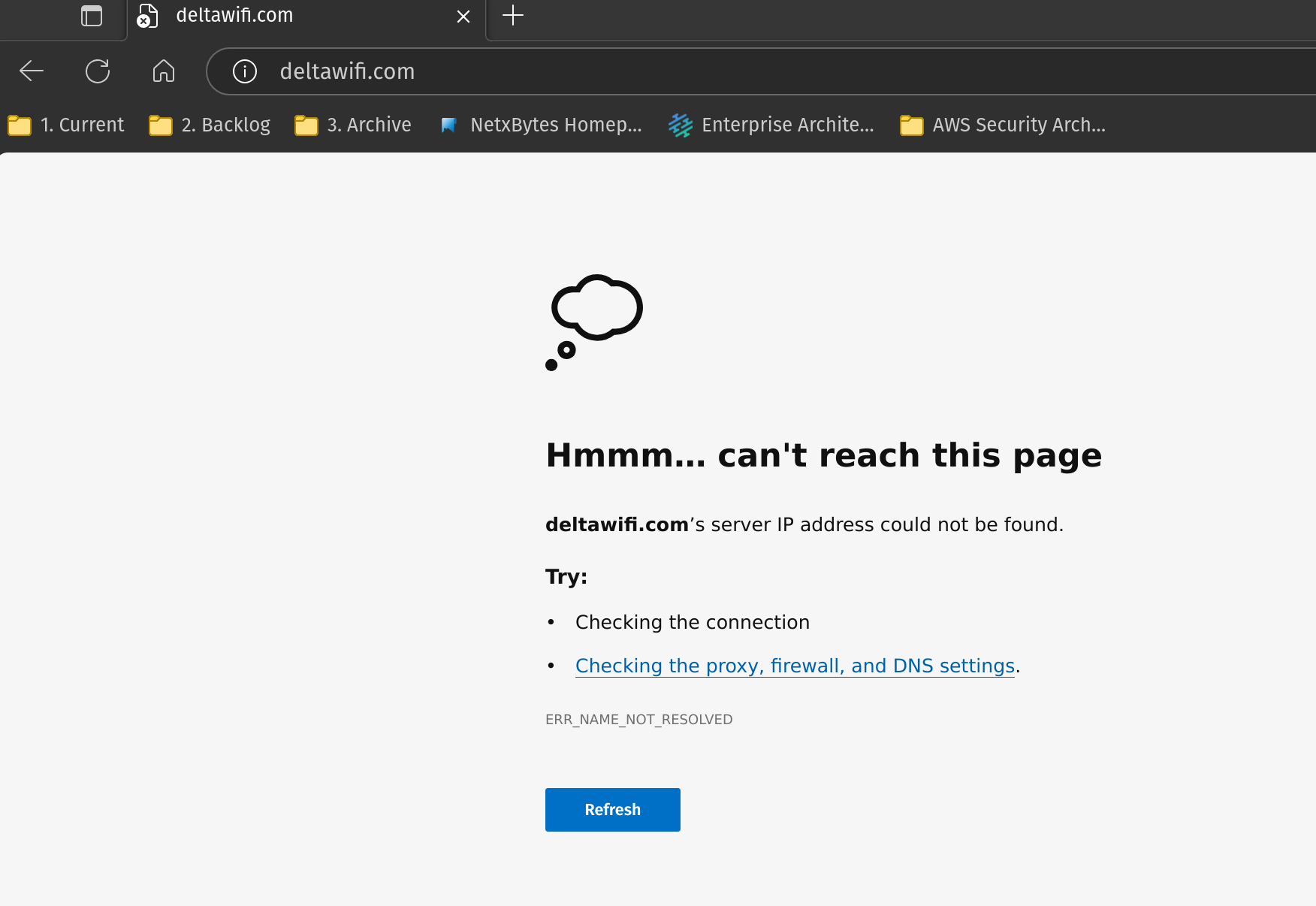
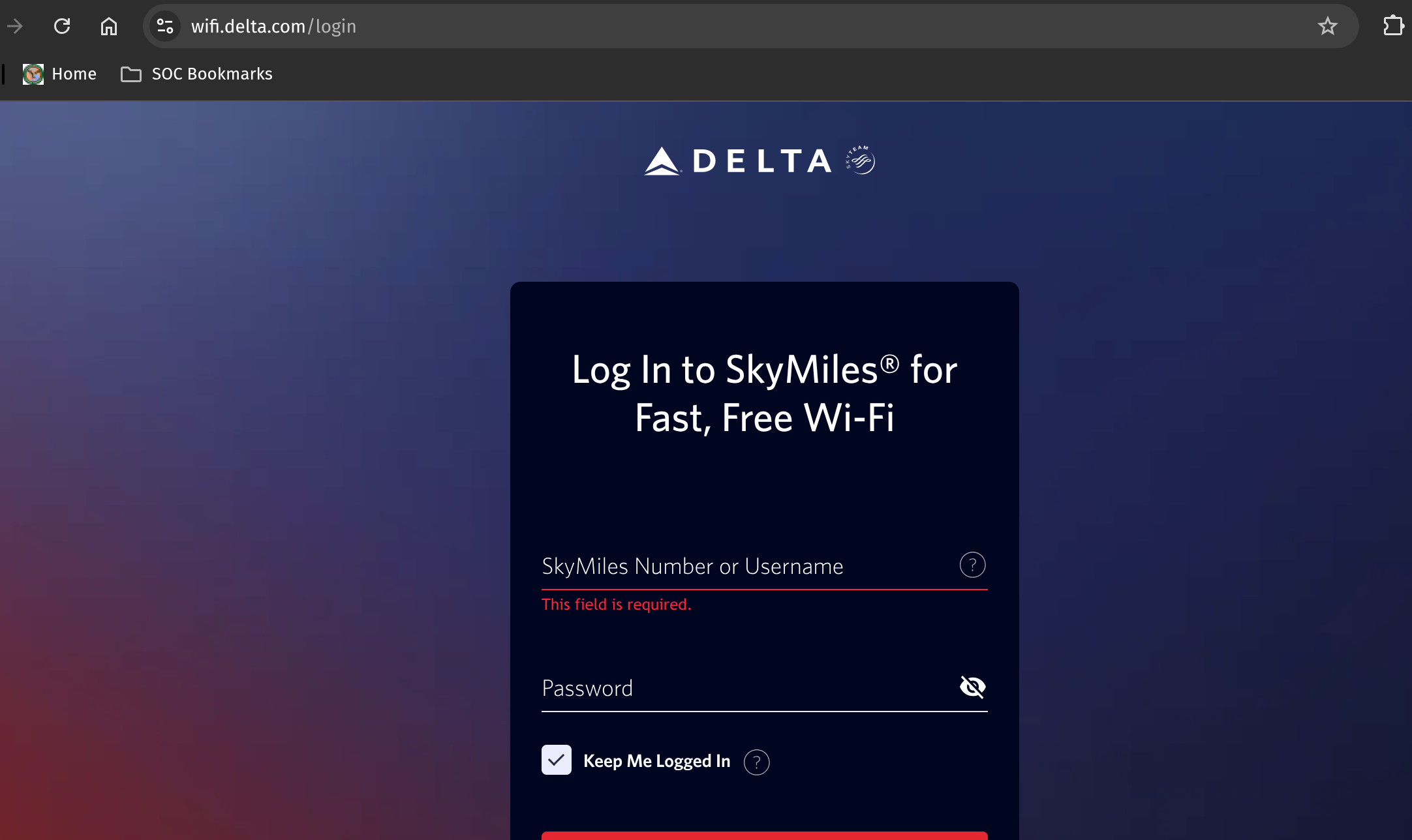
Error Message:
Attempt to connect to the deltawifi.com
Step-by-Step: Fixing Docker & Delta WiFi Conflict
1. Validate Delta WiFi IP Range
Connect to Delta WiFi and run:
ip a | grep inet
Look for your wireless interface (e.g., wlp4s0). You might see:
inet 172.19.1.32 netmask 255.255.254.0 broadcast 172.19.1.255
Using the UI
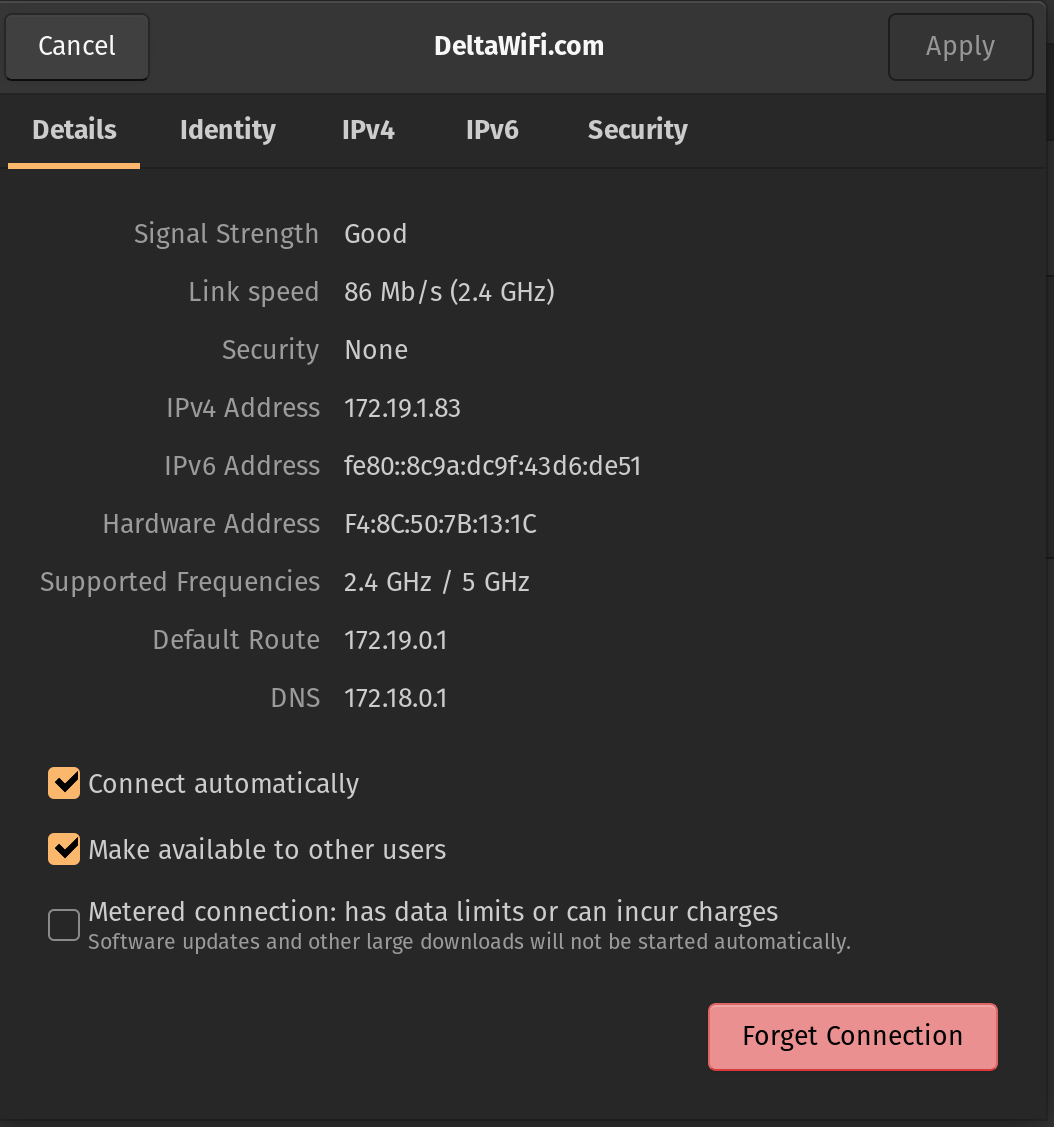
That confirms Delta uses 172.19.0.0/23.
2. Check Docker Network
List docker networks:
docker network ls
Inspect any custom or bridge networks:
docker network inspect <network-name>
If you see something like:
"Subnet": "172.19.0.0/16",
"Gateway": "172.19.0.1"
You’ve got a conflict.
3. Change Docker’s Default Bridge Subnet
Edit Docker daemon config (if the file does not exist create it):
sudo nano /etc/docker/daemon.json
If the daemon file exists and the base subnet IP conflicts with the Delta in-flight subnet, change it to a non-conflicting range:
{
 "default-address-pools": [
   {
     "base": "172.31.0.0/16",
     "size": 24
   }
 ]
}
Restart services:
sudo systemctl restart docker.socket
sudo systemctl restart docker
4 Remove Conflicting Networks
Even after changing the default subnet, you might have leftover container networks using 172.19.x.x.
Use Portainer or run the following to get the container network details:
echo -e "NETWORK ID        NAME                  DRIVER    SCOPE     SUBNET"
docker network ls --format '{{.ID}} {{.Name}} {{.Driver}} {{.Scope}}' | while read id name driver scope; do
  subnet=$(docker network inspect "$id" --format '{{range .IPAM.Config}}{{.Subnet}}{{end}}')
  printf "%-18s %-21s %-9s %-9s %s\n" "$id" "$name" "$driver" "$scope" "$subnet"
done
Then remove any conflicting networks:
docker network rm <network-id>
In my case, I had 15 container networks. I removed all inactive ones. You can just remove the ones that conflict with Delta’s range.
After the Fix
Docker bridge:
docker0: inet 172.31.0.1 netmask 255.255.255.0
Delta WiFi:
wlp4s0: inet 172.19.1.32 netmask 255.255.254.0
No more overlap. Captive portal worked instantly.
Takeaway
If you’re a developer running Docker and can’t connect to Delta’s WiFi:
- Check your Docker bridge and container networks
- Make sure nothing uses
172.19.0.0/23 - Change to a safe subnet like
172.31.0.0/24
Hope this saves someone a headache on their next flight!
Happy travels ✈️